You are here: Manage Orders > Creating an Order on the Market Page
Creating
an Order on the Market Page
You can create an order on the Market page (and the Option,
Scanner and any Product page you create) by clicking the Bid or Ask price
in the Market View. You can also create orders for contracts that do not
appear on the Market page by expanding the Order Management panel.
To create an order on the Market page
Click a price to create an order.
Click a price in the Bid column to create
a SELL limit order at the selected price.
Click a price in the Ask column to create
a BUY limit order at the selected price.
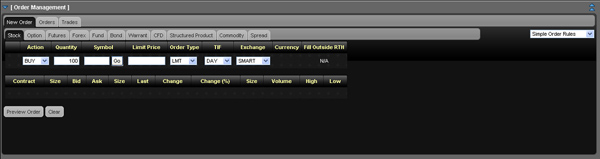
The Order Management Panel expands automatically
and opens the asset type tab associated with your order (Stock, Option,
etc).
You can also create an order from any page in WebTrader by opening
the Order Management Panel, then selecting the desired asset type
tab on the Orders tab.
In the Order Management Panel, modify
any necessary parameters including:
Action - Buy or Sell.
Quantity - number of units in the order.
Symbol - the symbol you want to order.
This is automatically filled in if you created the order by clicking
the Bid or Ask price of an instrument in the Market View.
You can enter or change the symbol by typing in the Symbol field; clicking
the Go button, pressing the
Tab key or pressing the
Enter key; then selecting
the symbol from the drop-down search results.
Limit Price - for Limit and Stop Limit
orders.
Stop Price - for Stop and Stop Limit orders,
the price that must be penetrated to initiate the order.
Order Type - Limit, Market, Stop, Stop
Limit, Limit-on-Close, Market-on-Close, Trailing Stop, or Trailing
Stop Limit.
TIF - Day, GTC, IOC or OPG. A Day order
continues to work until it executes or the market closes. GTC
(good 'til cancelled) order continues to work until it executes or
is cancelled. An IOC (Immediate-or-Cancel) order instructs the system
to cancel any portion of the order that is not filled immediately.
An OPG time in force is used with a Limit order to indicate a Limit-on-Open
order, or with a Market order to indicate a Market-on-Open order.
If you have enabled Advanced
Time In Force Attributes on the Preferences page or
by selecting Advanced Time in Force
from the drop-down in the upper right corner of the New Order
tab, the Start Time and End Time fields are added to the order fieldsand
you can select GAT for a Good-after-Time/Date order, or GTD for a
Good-til-Date order. Be sure to select your time zone in the Advanced
Time in Force section of the Preferences page or the default time
zone for the Start Time and End Time field will be GMT.
Fill Outside RTH - Selecting this check
box allows the order to fill or trigger outside of regular house (as
well as during regular trading hourse) if the order is eligible to
do so.
Exchange - select SMART to get the best
execution, or choose to direct-route to a single exchange by choosing
from the list.
You can delete the order before you submit
or preview it by clicking the Clear button.
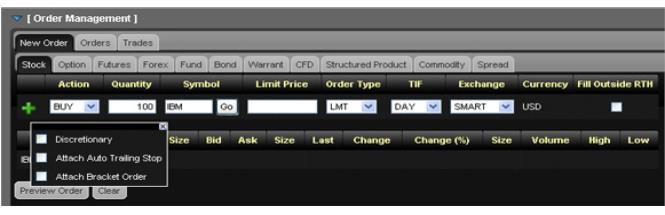
You can add attributes to your order
by clicking the green plus sign (+) located on the left side of the
order fields, then selecting the appropriate check box in the popup
window. Be sure to click the X button
to close the popup window.
Discretionary -
Selecting this check box adds the Discr Amt field to the order parameters.
Enter the discretionary amount in this field.
Attach
Auto Trailing Stop - Selecting this check box adds a trailing
stop order to displayed order. You can modify the Action, Limit Price,
TIF or Exchange for the trailing stop order.
Attach
Bracket Order - Adds two orders to your original orders
to form a bracket order, and adds the Election Price field to the
third order in the bracket. You can modify the Action, Limit Price,
TIF or Exchange for the second and third order in the bracket, and
the Election Price for the third order.
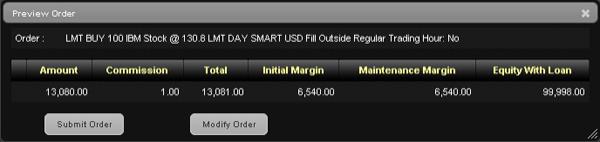
Click Preview
Order. The order preview shows the amount of the trade, the
commission, and what your total initial and maintenance margin and
total Equity with Loan Value will be if the trade is executed.
Click Modify
Order to further modify the order, or Submit
Order to transmit the order.
If you have Expert Mode turned on (enabled on
the Preferences page), you can submit the order without previewing it.